What did a T-Rex Taste Like?

trexWhat did a T-Rex Taste Like?

Believe it or not, we actually have was of finding this answer despite the fact the Tyrannosaurus Rex has been extinct for over 65 million years. We can determine a T-Rex features, including taste, using similar features (which we now know are called homologous structures). shared with animals the T-Rex is closely related to.

Recall that yesterday we learned that the more features you have in common, the higher the probability that you share a common ancestor/DNA (the exception would be convergent evolution where two species become increasingly similar despite the fact the originated from different ancestors). So what we can do is plot relatedness, based on characteristics, on a graphic called a cladogram, like the one shown here.

So Today, that’s exactly what we’ll be doing, using the link at the top of this post, you’ll follow the steps to learn how cladograms are created, organized, and what the different branches of it mean. By the time you are through, you will know what it tastes like to bite into a big fat dino-burger!

Theories of Evolution

That’s what we’ve been talking about the last few days. We’ve talked about theories and evidence that supports or refutes those theories. There have been lots of theories of evolution but we’ve focused on two…

  1. Jean-Baptiste Lamarck

    • Acquired Characteristics
    • Whatever traits or habits that you picked up over your life, you passed on to your children.
    • Believed that if you really “needed” something or some habit to survive you could acquire it.

  1. Charles Darwin

    • Descent with Modification – Present living beings are modified decendents of older organisms and species.
    • Modification by Natural Selection – Environment limits the growth of populations. Some Organisms have traits that make them better able to survive in their environment

Evidence suggests that Drawin’s theory, which he illustrated in his book “On the Origin of Species”, is accurate. Can you think of any instances of organisms that look like other species but have some type of special advantages to help them survive in their environment?

To review, click through the Darwin information pages and see if you can help a species of furry creatures live for a million years!

The DNA Puzzle

Today we’ll begin our long journey through the wide world of DNA. As we begin to look forward to a fun filled few weeks, its at this point that we look back into the past and discuss the important people who’s contributions and life’s work answered some of life’s biggest questions. Below are links to videos that are taken from the website DNAi.org (provided you are using a computer with flash and not an iPad). Use them to complete the introduction to these scientists as a part of this webquest (PDF)

Together the contributions come together to fit like pieces of a puzzle (Read Here) and the shape of the DNA molecule was finally uncovered.

Ionic Compounds with Polyatomic Ions

Well, first things first. If you need a refresher on naming Ionic Compounds click the link below to be whisked back in time to the summer of love, otherwise known as November of last year and a post I wrote about how to name molecular and ionic compounds…

The Name Game (November 20, 2012)

Now, naming an Ionic compound that has a polyatomic ion in it is just as simple as naming any other ionic compound. It’s simply…

The name of the metal (space) The name of the Polyatomic Ion

PI1

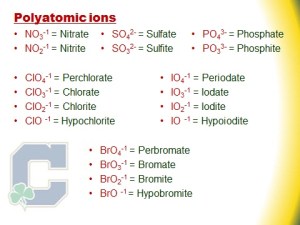
The trick is that you need to know the names of the polyatomic Ions. Here is the first group of them (figure on the right). Here are the rules for naming polyatomic ions:

  1. “-ate” has 1 more Oxygen atom than “-ite”
  2. If you add an Oxygen to an ion that ends in “-ate” add the prefix “per-” (ChlorATE = ClO3 // PERchlorate = CLO4)
  3. If you subtract an Oxygen from an ion that ends in “-ite” add the prefix “hypo-” (ChlorITE = ClO2// HYPOchlorIte = CLO)

The entire molecule, NO3 for example, has a charge of  -1. So lets say I was joining Nitrate (which is NO3) with Magnesium…
Well, Magnesium’s charge is 2+ so how many Nitrate Ion’s would I need? If each NO3 has a charge of -1 then I need 2! So The formula would be…

Mg(NO3)2

The parentheses go around the entire polyatomic ion because the entire ion has a charge and therefore I need 2 of the whole thing.

So, to name the formula, I just use the names of each part: Magnesium Nitrate!

All the same rules for Ionic compounds still apply (Charges must balance & Metals with multiple charges get roman numerals). Try the first set of polyatomic Ion problems (Practice #1) and then move on to the 2nd group of Polyatomic ions, shown at the bottom, and then try their practice problems (Practice #2).

PI2

Thing 6 – Google Apps

Google Drive and Dropbox may have been the best thing to happen to me in my teaching career. I remember the days of working on a document at home that I planned on using at school the next day in the hopes that 1. the email would be at school on my big bulky classroom desktop computer 2. the document would not end up in a new format that I would have to rearrange and resize before rushing down to the printer/copier. So here’s why I love google drive…

1. In the Cloud…

Saving items to my google drive makes that same document, powerpoint, or whatever available across all platforms and devices. Besides the fact that I can now access the files saved on my laptop from my iPad or iPhone, I can carry a document and its info in my pocket without ever having to print it. Let me give you an example…

The other day I rushed to the grocery store on my way home from a long day of teaching and football practice to get items to make dinner AND to pick up materials I was going to use for a Biochemistry lab the next day (this way I didn’t have to hit up the Walmart at 11 at night with the REALLY interesting crowd). As I walked the aisles I knew i was missing two items I needed for the lab but couldn’t remember and of course didn’t bother to write them down earlier (my wife is laughing as she reads that part). As I was about to walk out dejected and resigned to the fact I would have to get to school before 6 to find the lab and then run to the 24hr store before school started, it dawned on me… I Have The Lab Saved On GoogleDrive! I popped open the App on my iPhone and sure enough there was my beautiful pdf with all the lab materials listed! GOOGLE TO THE RESCUE!

2. Collaboration…

If you create a document IN Google (not uploading a .doc you made in word), you can have multiple collaborators! Meaning that students can all be typing on the same document AT THE SAME TIME! They go wild the first time you do it (especially if you project the document on the board as they add to it) and the see their words ‘magically appear’ along with their names. So if students are working together in a group, they can be collaborating in the classroom, in different classrooms, and even at home! You can use the same concept of a Google Doc as a closing activity and have students write down questions they still have from the lesson, or things they had learned from the lesson.

3. ‘Links’ to knowledge…

Once you have created or uploaded a Google document, Google provides you with a weblink that you can give to students so they can view the document at any time. These are especially useful if you want to provide the kids with a. access to past documents or b. answer keys! This is why Google is soooo great for me. My kids always want to be able to check their work AS THEY GO. They don’t want to turn in something if they aren’t confident they are correct. And as long as you create a class culture that the key is to be used as a resource and not for copying, I have found that kids respect that and appreciate that you provide it for them.

4. Ease of use…

The really nice thing about Google Drive is that you can connect it to your desktop or laptop. What that means is that when you connect your drive to your computer, it creates a Synced folder that you can simply drag and drop items, or save documents to that folder. This beats the heck out going to  the google drive website, pressing upload, finding the document, etc..

So if you would please Collaborate with me by clicking the link below and tell me what you think of Google Drive so we can help each other! Hooray for Collaboration!

Click Here to Add to Our Live Google Doc

Thing 5 – Google Forms… and Flubaroo?

Google forms is an easy way to give online quizzes, polls, or feedback forms to your students, colleagues, or parents. In my class I do “Warm Ups” (Some might call it bell work, bell ringers, etc.) each day to either awaken prior knowledge on new material we are learning or to retrieve the previous day’s learning. At the end of each week I post to this site a simple google form that the students complete based on the warm ups. This way I don’t have to check, collect, or grade any papers! Instead, I have the google form. It collects the data, it can grade the quizzes, AND can email the students their results so they get immediate feedback too!

Here’s an example of one of my Warm Up Quizzes: Warm Up Quiz 9/27
Screen Shot 2013-10-11 at 1.53.31 PM

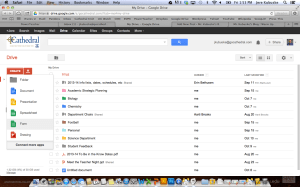
Fig. 1 – My Google Drive

Now, here’s how you do it:

1. Log into your google drive and find the red button that says “create”. Click it an a drop down menu appears, choose “form”.

2. Give your form a title and start writing in questions. You can choose from different styles of questions like multiple choice, list, checkboxes, or just written text (although those become harder to grade in the next sections). I usually make the first question just “First Name” and leave as a short text question. At Cathedral, our forms can automatically collect our students’ email/log in. in order to send them their results you will need this info so make sure you check the box at the top marked, “Automatically collect respondent’s Cathedral High School username” (or you could make a question that asked respondents for their email address).

3. To add new questions you can either:

  • Duplicate the previous question my pressing the button to the right of your first question that looks like one paper lying over another.
  • Create a new question by pressing the button at the bottom of the page that says “Add Item”
form1

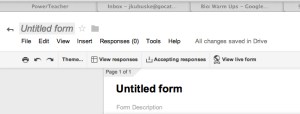
Fig 2 – Google Form Tool Bar

4. This is important, if you plan on using this as a Quiz DO NOT MARK ANY CORRECT ANSWERS ON YOUR FORM. All that marking them does is place the mark on that answer so that when the student looks at it they see the correct answer marked for them.

5. When you’re finished, you can view your completed quiz by clicking “View live form” near the top of the page. But more importantly you want to be sure that the button to its left says “Accepting Responses”. This means your form can be viewed and filled out. If this is meant to be an actual quiz that you do not want students able to see at all times, simply click that button and it will change to “Not accepting responses”. (You can easily switch it back by pressing it again)
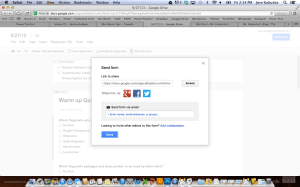
Screen Shot 2013-10-11 at 2.34.26 PM

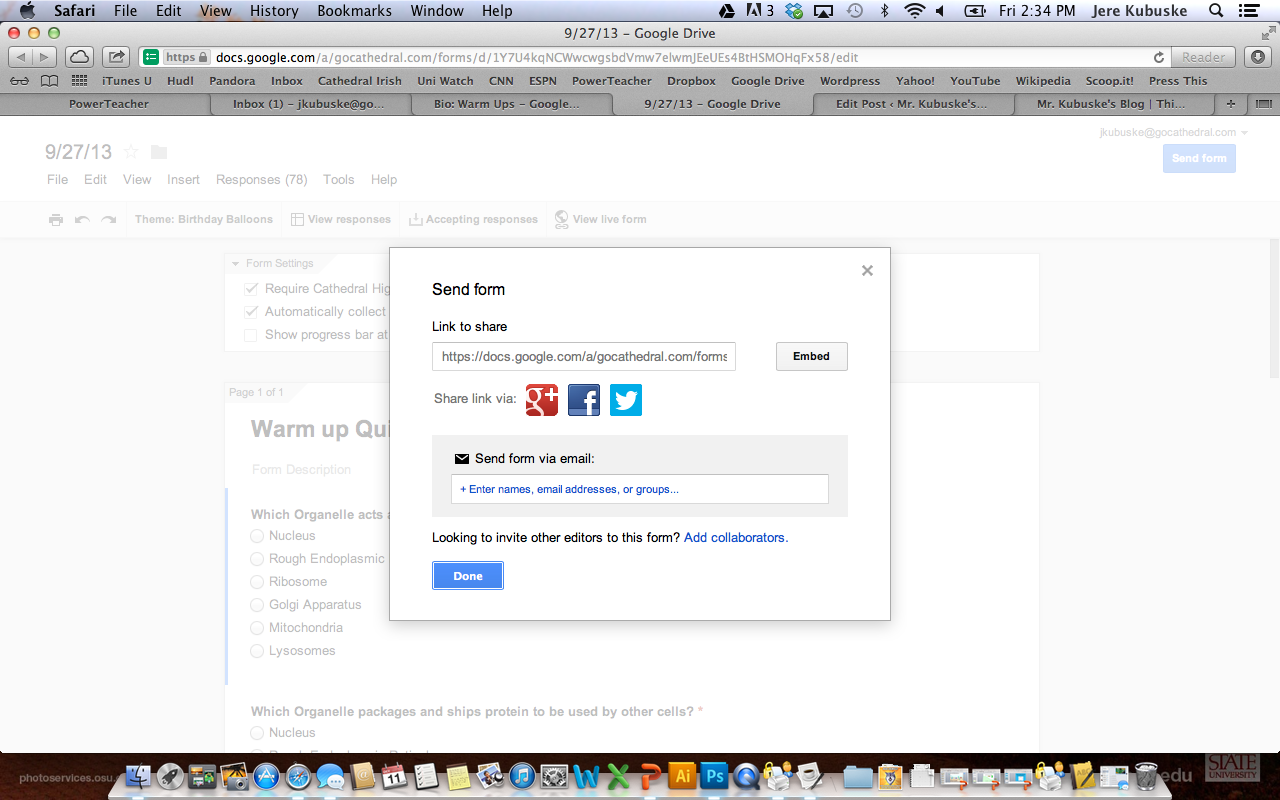
Fig. 3 – Send form options

6. When you are ready to share your quiz and make it like click the large blue button that says “Send form”. You can send the form (make it viewable) three different ways:

  1. Copy and paste the URL into your own blog or website
  2. Email your students (or whomever) using the window on the screen
  3. (What I use) You can choose to get the “Embed code” so that you can embed the quiz directly into your website.

Flubaroo
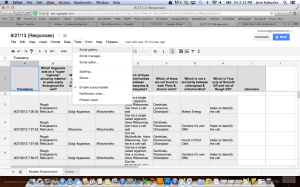
Screen Shot 2013-10-11 at 2.12.39 PM

Fig. 4 – Google Spreadsheet

Now  here’s where it gets fun. The other button in that bar says “View Responses” clicking this will take you to a new Google Spreadsheet that WILL AUTOMATICALLY COLLECT YOUR RESPONSES! (I know, right!?).

As you can see in this picture, Google automatically makes your questions the header on each column and places the students answers in them.

Grading

To have google automatically grade your assignment, click the tab titled “Tools”.

When the dropdown menu appears, the first item listed is “Script gallery”. Click that!

Screen Shot 2013-10-11 at 2.15.33 PM

Fig. 5 – The Script Gallery

A box will appear with a list of scripts that google can run for you to analyze your data. The script you want is called FLUBAROO, so type that into the search bar. When it pulls up the result. Click “Install”.

It’s going to ask to be able to view some of your Google information, do not freak out! Its okay, it just needs permission to read the google spreadsheet so that it can grade it.

Once you have installed Flubaroo, there will be a new tab at the top titled “Flubaroo” (See Fig. 3 for proof). Click the tab and choose “Grade Assignment”. Now before you can grade your assignment, you will have had to have taken your own quiz to make a key. You will then use your response as your Key and compare your students answers to it.

Grade your assignment and Flubaroo will create a new ‘page’ to your spread sheet with data on student results.

Screen Shot 2013-10-11 at 2.26.17 PM

Fig. 6 – The results of a recent assessment

Finally, to send your students their results, click the “Flubaroo” tab again and choose “Email grades”. You’ll have to identify which column of the responses is the email addresses before it can work its magic.

Finally, you can see a report on how your students did by clicking “View Report” in the Flubaroo tab. The report is simply a histogram of the grades, but it’s still pretty helpful.

Other Uses

Recently, I had my students create their own google quizzes, post them and then take other students quizzes. It was a fun way to 1. get them to review and 2. teach them a valuable skill.

Scroll to the bottom of this post and you can see their quizzes: Agenda 9/25

Now, there are more advanced techniques and tricks available if you’re interested. Please contact me if you would like more information. Otherwise, please complete my newest google form below!